














How to Organize OneNote for Work and Projects

Ryan Tanner
Product Marketing Specialist
Sep 18, 2026
Ryan Tanner
Sep 18, 2026

17 min read


Organizing information well is one of the biggest productivity advantages in modern work. Whether you are managing multiple projects, taking meeting notes, planning tasks, or structuring research, the ability to store and retrieve information quickly can dramatically improve focus and execution. Microsoft OneNote is a popular choice for capturing ideas and personal notes, but many users struggle with cluttered notebooks, scattered pages, and long, unstructured content.
If you've been searching for how to organize OneNote in a way that actually scales with your work, this guide gives you a clear structure you can apply immediately. You'll also discover how Lark helps teams go beyond individual note-taking with unified tasks, collaboration, and project visibility.

Why organizing OneNote matters
Before diving into setup and structure, it's important to understand why organization in OneNote can make such a big difference to productivity. Most people use OneNote reactively at first, treating it like a blank place to jot things down. Over time, this creates chaos instead of clarity. Notes mix together, tasks become buried, and important information turns into scrolling sessions of guesswork.
A well-organized OneNote helps you move from random note dumping to intentional knowledge storage. Instead of searching through folders, screenshots, voice notes, Post-its, and emails, everything lives in a single, structured system. For professionals who handle meetings, planning, research, and follow-ups, the ability to jump into the right notebook, find the right page, and act quickly is a time saver every day.
For project managers, remote workers, content creators, and team leads, having a reliable system also reduces cognitive load. You no longer depend on memory to remember where things are. The structure does the work for you. This shift is what turns OneNote into a tool for thinking, not just typing.
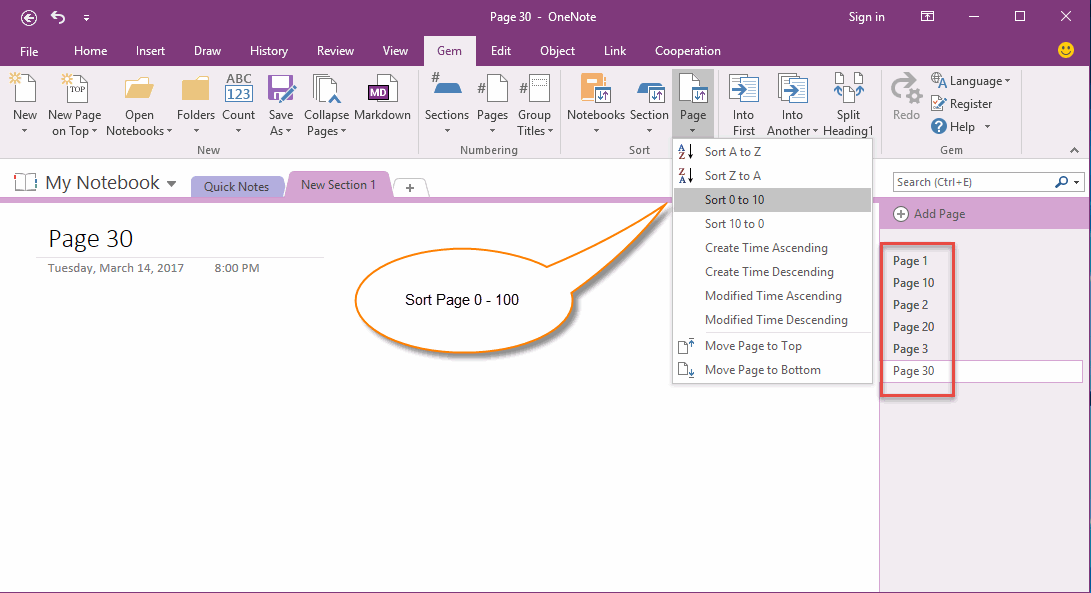
Image source: onenotegem.com
Understanding OneNote's structure
OneNote is built around a hierarchy that mirrors the way physical notebooks work. The app uses notebooks, sections, and pages as its core building blocks, and understanding this structure is the foundation of effective organization. Without clear logic for how these layers relate to each other, everything else becomes cluttered.
- Notebooks, sections, and pages: The first level of organization in OneNote is the notebook itself. Many users start with just one notebook and then add more over time, but a smarter approach is to treat each notebook as a container for a theme, role, department, or project. Inside each notebook are sections, which act like labeled tabs. These sections hold pages where the actual notes live. Most users only work with pages, but the hierarchy is what prevents chaos. Once you know how each level should be defined, you start building notebooks that scale instead of notebooks that collect random thoughts.
- How to use sections to categorize projects or teams: Sections should act as high-level categories, not catch-all areas. A common mistake is creating sections like "Ideas", "Notes", or "General", which become dumping zones. Instead, sections should allow quick scanning and fast recall. For example, if you run multiple projects, you can create one notebook per project and structure sections around planning, tasks, research, meetings, assets, and deliverables. If you lead a department, you may create sections for hiring, KPIs, planning, reporting, and strategy. The key is that sections reflect how your brain searches for information. If you would never remember a note under something called "misc", don't create a section labeled that way.
- Pages and subpages for detailed tracking: Pages are where specific content lives, and subpages help break complex topics into smaller pieces. If a meeting note has decisions, summaries, and follow-ups, subpages allow you to separate those without starting another notebook. A page may contain high-level notes, while subpages store action items, attachments, or references. Subpages also help control scrolling. When a page gets too long, it's usually a sign it should become a section, or the content should split into subpages. The more you learn to break information into smaller pages, the less overwhelming your workspace becomes.
How to organize OneNote for work
OneNote becomes most useful when it mirrors how you work day to day. Whether you manage teams, track personal tasks, or handle client interactions, your notes should follow a system that supports better decisions and faster context retrieval. Below are strategies that focus on clarity, consistency, and repeatable workflows.
Step 1: Create notebooks by role or department
Instead of creating notebooks named after years or random topics, it's better to create notebooks based on the hat you wear. For example, if you work in marketing, product, and operations, each can have its own notebook. Inside the marketing notebook, sections may include campaigns, performance analytics, content planning, and partnerships. Inside the product notebook, you may track feature plans, sprint notes, backlog ideas, and research. This method ensures that when you switch mental contexts, you switch notebooks too. You don't scroll through content that doesn't match your current focus.
Step 2: Use templates for recurring projects
One of the most underrated features of OneNote is the ability to reuse page templates. Instead of rewriting the same meeting outline, project kickoff, client report, or weekly planning note, you can store templates and copy them each time. Templates also help standardize team workflows when multiple people use the same notebook. For example, a product team can keep a reusable format for sprint planning, user story breakdowns, and feature briefs. A sales team may use a template for discovery calls or lead qualification. Templates reduce friction and increase consistency, which is what keeps notebooks from drifting into chaos.
Step 3: Pin priority notebooks and use tags effectively
OneNote allows users to pin notebooks so they appear at the top of the list. This is particularly useful if you manage long-term and short-term projects together. Pinning keeps high-priority work visible while burying older or reference notebooks out of the way. Tags also help transform notes into usable information. You can tag tasks, decisions, questions, ideas, and important quotes so they show up in OneNote's tag summary view. This turns random notes into filtered lists you can act on. A tagged note becomes a reminder, not just a sentence buried on a page.
Step 4: Keep a daily planner page for focus and tasks
Some users like to keep tasks inside separate to-do apps, but OneNote can handle task tracking well when structured correctly. A daily planner page lets you list goals for the day, track progress, and store related notes and links. Adding checkboxes converts notes into actions, and using the date format in page titles makes searching easier later. This method works especially well for hybrid workers who move between meetings, research, and execution. It keeps tasks inside the same place where context already lives, reducing app switching and mental fatigue.
How to organize OneNote for project management
Many people start using OneNote for personal notes, but later realize they also need it for projects involving multiple milestones, discussions, and handoffs. Project management inside OneNote is possible, but it requires intentional setup, so information stays linked, visible, and usable. These methods help turn notebooks into lightweight project dashboards instead of scattered planning documents.
Step 1: Combine task tracking with collaboration
Projects involve decisions, assignments, and follow-ups, so OneNote needs to function as more than a notepad. Instead of writing tasks inside meeting notes and forgetting them, you can link page content to Outlook tasks or tag items so they appear in a filtered task list. While this works for solo tracking, collaboration becomes harder when responsibilities shift across people. OneNote does not automatically turn notes into assignable tasks, which means shared projects require manual effort to stay aligned. If a team uses OneNote to collect discussion notes but moves tasks to another tool, context breaks apart. This is why many teams eventually look for a platform where notes and tasks stay connected automatically.
Step 2: Set up a master project notebook
A smart way to organize long-running initiatives is to create one master notebook for the entire project lifecycle. Sections can include planning, goals, team roles, timelines, research, and status updates. Each meeting or review gets its own page so nothing overlaps. A master notebook also helps new team members onboard faster. Instead of sending files, forwarding emails, or explaining history verbally, the notebook becomes the single source of truth. When someone joins the project, they just open the notebook and browse the section structure to learn what has already happened.
Step 3: Unify calendars and timelines
While OneNote does not show live gantt charts or sprint boards, you can embed project timelines as tables or linked images and then keep milestone notes underneath. This creates a fast visual scan of deadlines without switching tools. If you manage multiple timelines, create a dedicated "schedule" section, so date-based work never gets buried in meeting notes.
Step 4: Sync meeting notes with task lists
Meeting notes often become long documents with no follow-up path. by turning decisions and action items into tagged tasks inside OneNote, every task becomes searchable later. Adding initials or names after each task gives lightweight accountability when using shared notebooks. This method works best when every meeting follows the same structure, so tasks do not get lost between notes.
Afterthought
While OneNote shines as a personal organization tool, it often reaches its limits when teams need to collaborate beyond individual note-taking. Managing shared tasks, tracking approvals, and keeping multiple departments aligned can quickly become cumbersome across separate notebooks and pages. For growing teams, the lack of real-time collaboration and workflow visibility often leads to duplication and scattered updates. That's where a unified workspace like Lark steps in connecting notes, communication, and project execution in one place for a truly streamlined experience.
Meet Lark: The smarter way to organize work and projects
OneNote works best as a personal note-taking tool. It helps individuals capture ideas, document meetings, and store information long-term. However, when teams require shared visibility, assigned tasks, real-time updates, and linked communication, OneNote reaches its limits. Notes remain static, ownership is unclear, and information becomes harder to centralize as more people contribute.
That is where Lark becomes a modern alternative. It maintains the familiarity of note-taking while adding collaborative co-editing, automation, and workflow visibility, transforming notes into functional systems rather than personal documents. Instead of storing information and then transferring it to other apps for action, everything remains connected within one platform designed for teamwork.
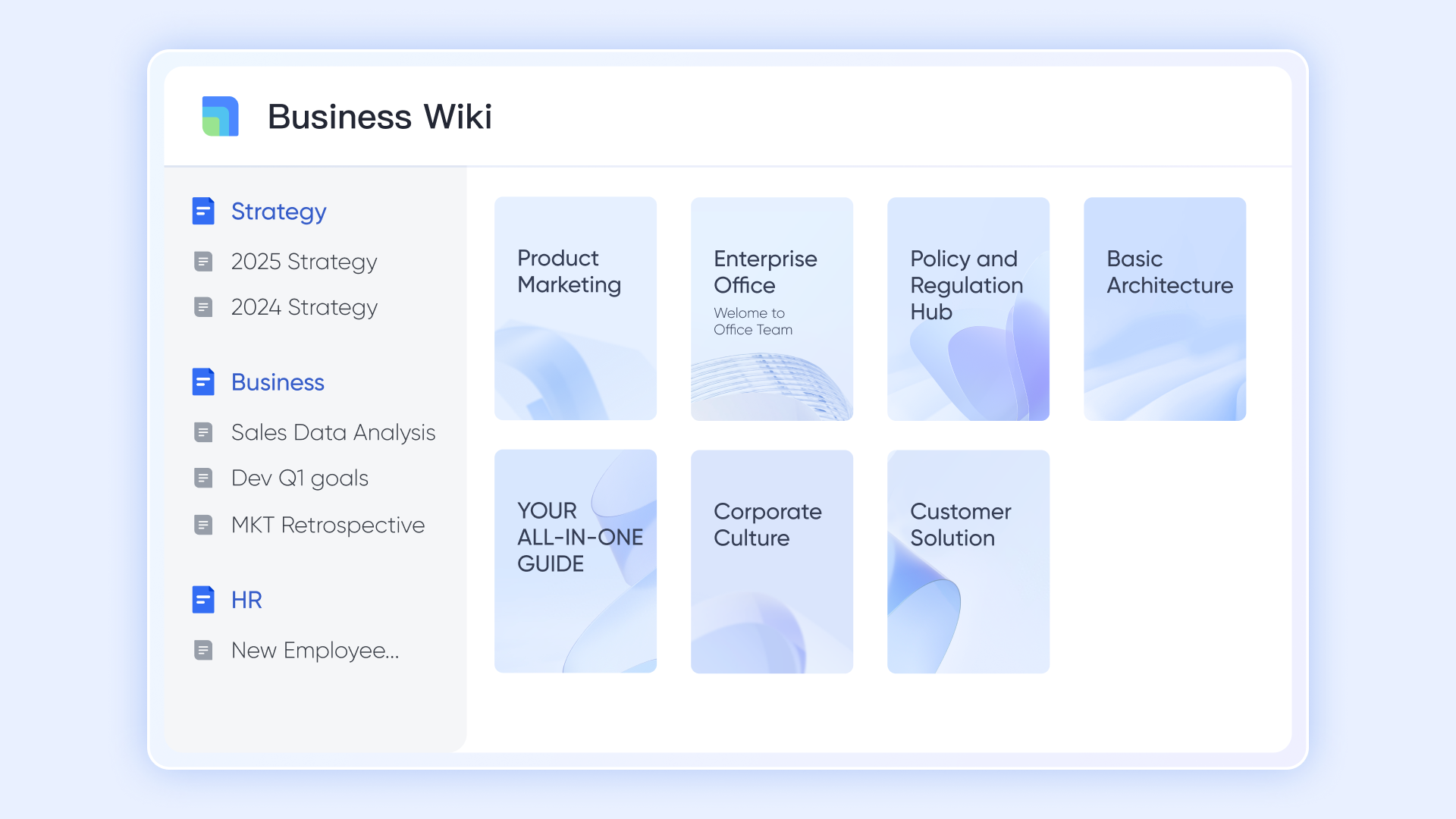
Lark Docs & Lark Wiki: From personal notes to shared knowledge
Unlike OneNote's individual notebooks, Lark Docs enables multiple people to co-edit in real-time, comment inline, and manage document versions effortlessly. This means brainstorming notes, meeting minutes, and project briefs can evolve collaboratively instead of sitting in separate files. Once finalized, they can move to Lark Wiki, creating a structured knowledge hub that stays accessible to the whole organization. It's a seamless way to turn ideas into shared documentation, not isolated pages.
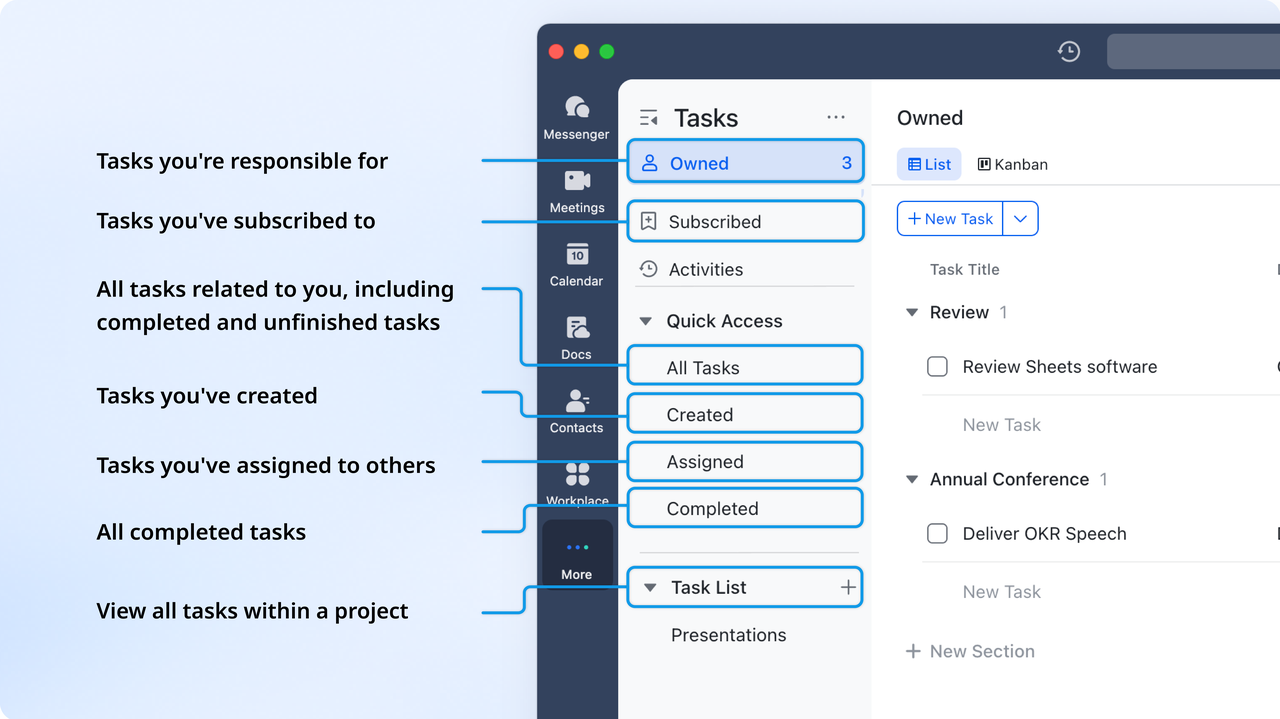
Lark Tasks: Turning notes into organized action
OneNote helps you write to-do lists, but they often remain static. With Lark Tasks, every note, discussion, or document can instantly transform into an actionable task with ownership, deadlines, and priority. Teams can view progress across projects, track accountability, and receive reminders all within the same workspace. This bridges the gap between writing notes and actually executing them, helping teams move from planning to results faster.
Lark Messenger: Keeping every discussion connected to work
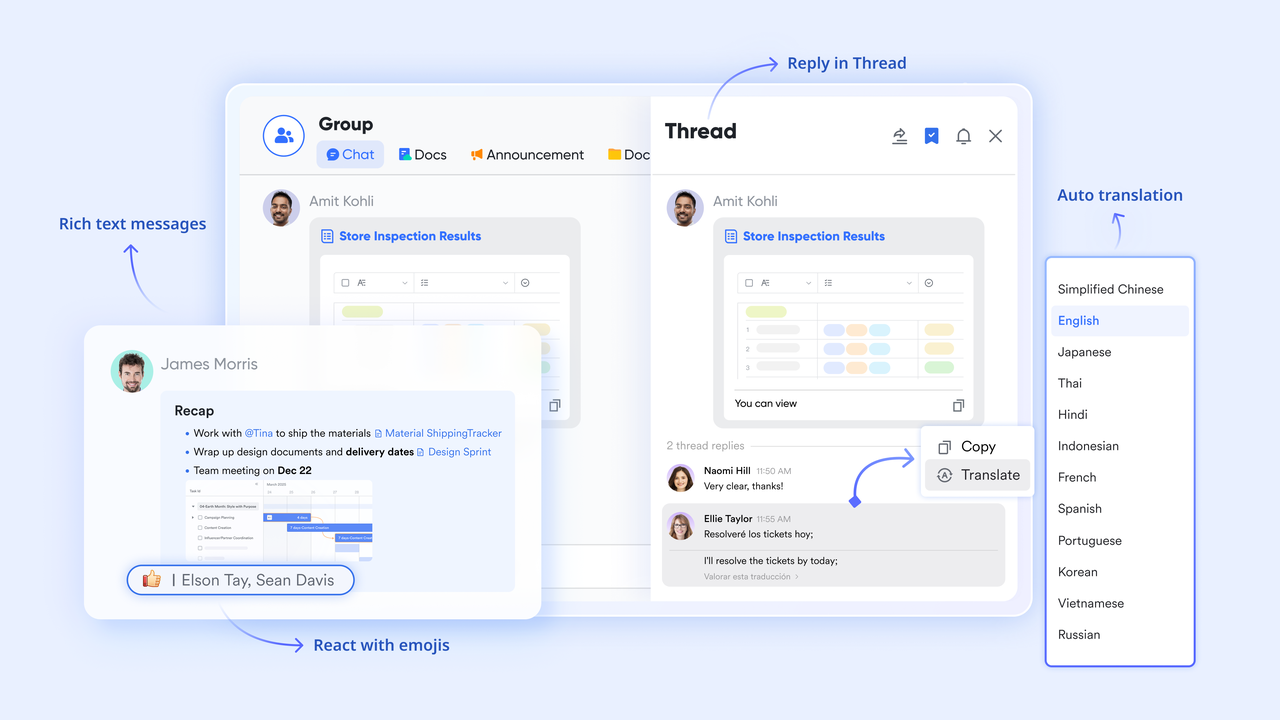
While OneNote supports comments, it doesn't connect them to real-time conversations or updates. Lark Messenger changes that by tying communication directly to your projects, documents, and tasks. You can share notes, discuss edits, or assign responsibilities without switching between chat apps and project tools. Every message is linked to the context it belongs to making it far easier to stay organized and reduce misunderstandings.
Lark Meetings: Capture discussions and actions automatically with AI meeting notes
While OneNote requires you to manually take and organize meeting notes, Lark Meetings brings collaboration and structure together in real time. Teams can start video meetings directly from chats or calendar events, ensuring discussions happen where work already lives.Lark's built-in AI Meeting Notes automatically summarize key points, capture decisions, and list action items as the meeting unfolds eliminating the need for manual note-taking. Once the meeting ends, these notes sync instantly with Lark Docs and Lark Tasks, so follow-ups and next steps are never missed.
This intelligent setup ensures every meeting turns into organized, actionable knowledge making it far easier for teams to stay aligned and productive than with traditional tools like OneNote.

Lark Base: Organize information with clarity and visibility
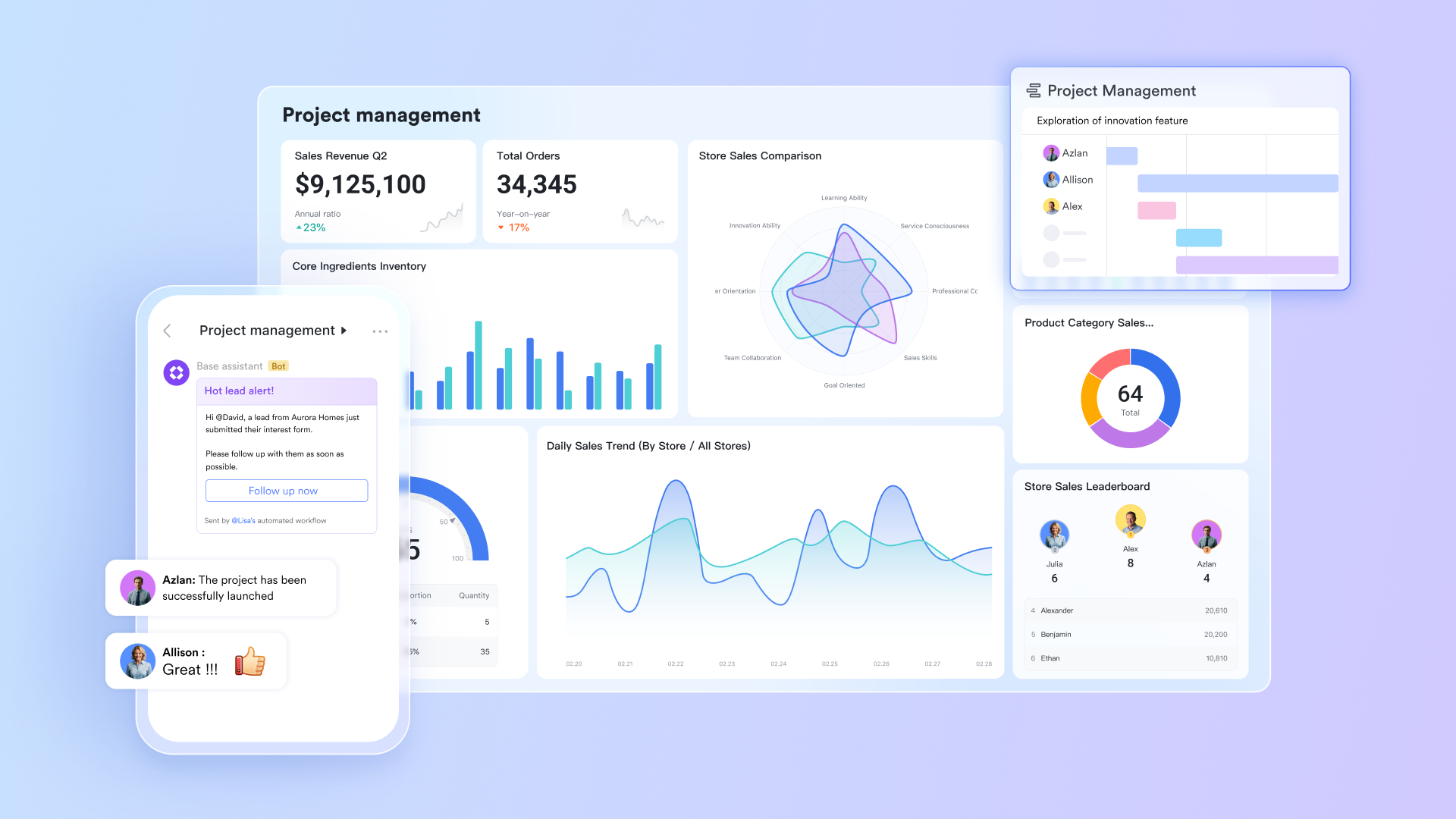
Lark Base takes the concept of note organization to the next level. Instead of keeping project data scattered across pages, teams can build structured databases complete with tables, tags, Kanban boards, and dashboards. This allows you to track progress, manage deliverables, and visualize workflows at a glance. It's like turning your most detailed notes into dynamic, living systems a feature OneNote simply doesn't offer.

Lark Calendar & Lark Mail: Bringing time and communication into one view
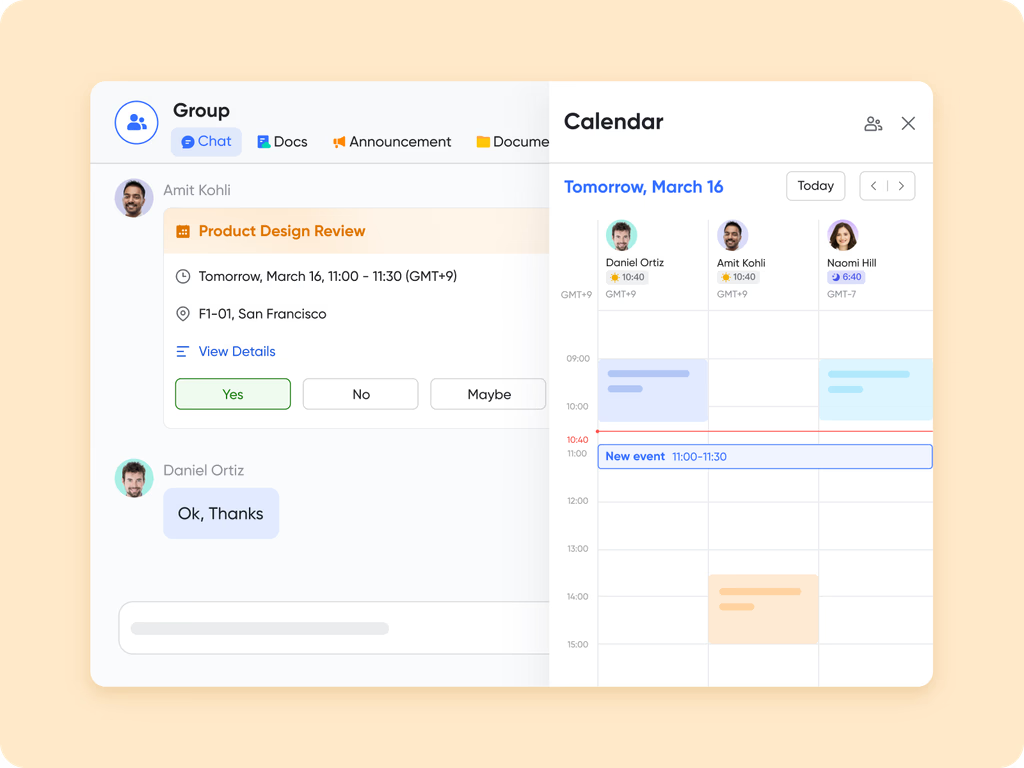
While OneNote focuses on note-taking, Lark Calendar and Lark Mail bring your schedule, meetings, and communication into a single, connected space. You can create events directly from chats, share agendas, and link meeting notes to ongoing projects—keeping everything organized and easy to access. As a business email service built into Lark, Lark Mail further streamlines your workflow by allowing you to insert calendar invitations into emails, embed messages within Lark Docs for collaborative review, and access your inbox directly from Lark Messenger. Together, they ensure every discussion, meeting, and follow-up stays in sync—saving time and keeping your team perfectly aligned.
- Starter plan: Free forever plan that includes 11 powerful tools for up to 20 users. It also comes with 100GB of storage, 1000 automation runs, AI translations, and more.
- Basic plan: $6/user/month (billed annually) for up to 500 users, including everything in Starter plus 1-on-1 video meetings, 5TB of storage, 1,000 automation runs, and more. To know more about Basic plan, contact our sales.
- Pro plan: $12/user/month (billed annually) for up to 500 users. It includes everything in Starter plus group calling for up to 500 attendees, 15TB of storage, 50,000 automation runs, and more.
- Enterprise plan: Contact sales for custom pricing. Supports unlimited users and includes even more automation runs and advanced security, compliance, and management features.
A quick checklist of Lark vs. OneNote
Conclusion
Choosing the right way to organize notes and projects depends on how much visibility, structure, and collaboration you need. OneNote remains a strong tool for personal productivity, long-form notes, and individual planning. But when work grows beyond one person and projects involve discussion, ownership, and real-time changes, teams need a system that connects information instead of storing it in separate notebooks.
Lark bridges that gap by turning notes into living documents, linking tasks to action, and keeping projects, files, and conversations in the same place. Instead of using multiple tools to write, assign, discuss, and follow up, everything happens in one shared workspace. That means less time switching tools, fewer missed tasks, and more clarity across teams. If you are outgrowing OneNote or want a platform that supports both personal notes and team execution, Lark offers a way to organize work that scales from individuals to entire departments.
FAQs
Can I use OneNote and Lark together for better organization?
Yes, you can use both tools at the same time if you prefer taking personal notes in OneNote and managing shared work in Lark. Many people keep drafts, research, or private brainstorming in OneNote while moving finalized work, tasks, and team projects into Lark, so everything stays visible to others. This setup helps you avoid having duplicate notes across different apps while still benefiting from real-time collaboration in Lark. It also allows you to transition gradually instead of switching platforms all at once
How can I migrate my notes from OneNote to Lark?
You can copy or export content from OneNote and paste it directly into Lark Docs or Lark Wiki, depending on whether you want a collaborative document or a structured knowledge page. Once the content is inside Lark, it becomes editable by teammates and can be linked to tasks, timelines, or databases, so the information is easier to use in ongoing work. This makes it simple to move important notes without manually rebuilding them. The process works for text, tables, lists, and most images.
What are the main limitations of organizing projects in OneNote?
OneNote works well for individual note-taking but does not provide shared task ownership, workflow tracking, or automatic progress visibility across teams. Notes remain static unless someone manually updates them, which can lead to outdated information and missed follow-ups. As more people contribute to a notebook, pages can become harder to navigate, especially without assigned responsibilities or status indicators. These limits become more noticeable as projects grow and require shared accountability.
How does Lark help teams stay organized beyond note-taking?
Lark combines notes, tasks, chat, meetings, and project tracking in one workspace, so information moves from ideas to action without changing tools. A note can turn into a task, a message can attach to a document, and a meeting can generate action items automatically. This reduces switching between apps and keeps conversations linked to work instead of scattered across emails and chats. It also helps teams see progress and responsibilities in real time instead of relying on static notes.
Is Lark free to use for organizing notes and projects?
Yes, Lark offers a free Starter plan for up to 20 users, which includes Docs, Tasks, Base, Wiki, Calendar, Messenger, AI tools, and cloud storage. This makes it possible for small teams or growing businesses to organize projects, take notes, assign tasks, and collaborate without paying for multiple separate apps. As needs scale, teams can upgrade to paid plans, but the free version already supports full document collaboration and structured project management. This makes it more than just a basic note tool.
Related reading
Table of contents
Start using Lark today

Manage all your work in one place
Boost team efficiency by 10x
Save up to 70% on software costs
Table of contents
Start using Lark today
Manage all your work in one place
Boost team efficiency by 10x
Save up to 70% on software costs
Keep reading







2026 Lark Technologies Pte. Ltd.
Headquartered in Singapore with offices worldwide.






Explore: